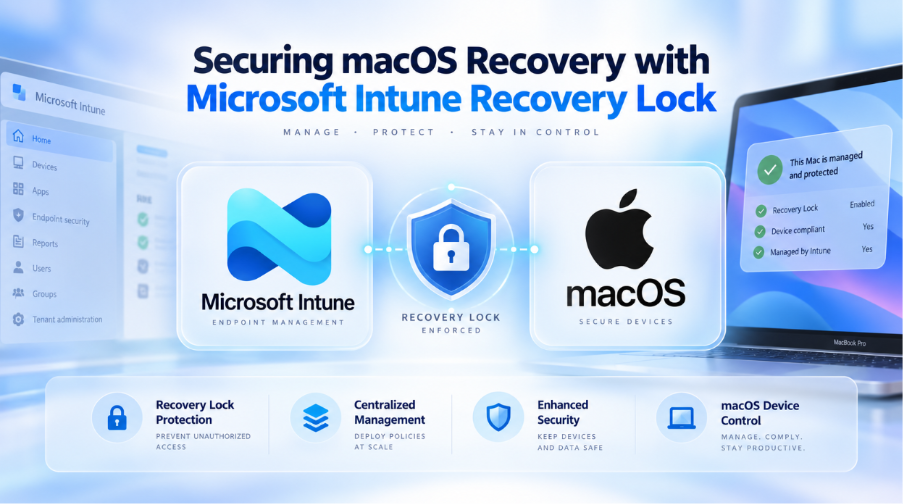
A practical guide for configuring Recovery Lock on supervised Apple silicon Mac devices using the Microsoft Intune Settings Catalog.
Introduction
For organizations managing corporate-owned Mac devices, securing the recovery environment is an important part of the overall endpoint security strategy. macOS Recovery gives users access to powerful recovery and startup options, including reinstalling macOS, erasing the device, and changing startup security settings. If this environment is left unprotected, someone with physical access to the device may be able to perform recovery-level actions that are not aligned with enterprise controls.
Microsoft Intune provides a centralized way to configure Recovery Lock on supported macOS devices. When enabled, Intune automatically generates a strong, random Recovery Lock password, applies it to the device, and escrows it securely so authorized administrators can view or rotate it when required.
What is macOS Recovery Lock?
Recovery Lock is a security control for Apple silicon Mac devices that requires a password before a user can access the recoveryOS environment or Startup Options screen. This helps protect against unauthorized reinstallation, wiping, and recovery-based changes. It is especially useful for enterprise-managed devices where IT must maintain control over device recovery and reset scenarios.
Before You Start
| Requirement | Details |
| Supported devices | Apple silicon Mac devices only. Recovery Lock is not supported on Intel-based Mac devices. |
| macOS version | macOS 11.5 or later. |
| Enrollment state | Device must be enrolled in Microsoft Intune and supervised. Automated Device Enrollment is recommended for corporate-owned Mac devices. |
| Administrator permissions | Policy and Profile Manager role, or equivalent Intune permissions, is required to create and assign the Settings Catalog profile. |
| Remote task permissions | To view or rotate Recovery Lock passwords, use an Intune Administrator, supported Microsoft Entra role, or a custom role with View macOS recovery lock password and Rotate macOS recovery lock password remote task permissions. |
| Assignment group | Use a dedicated pilot device group first. Expand to production only after validation. |
Recommended Intune Configuration
| Design Area | Recommendation | Notes |
| Policy type | macOS Settings Catalog profile. | Create all new macOS policies using Settings Catalog where possible. |
| Setting category | Recovery Lock Password. | Search for Recovery Lock in the Settings Catalog settings picker. |
| Enable Recovery Lock Password | Enabled. | Intune generates and sets the password automatically; do not define a shared manual password. |
| Password rotation schedule | Configure a rotation interval between 1 and 12 months based on security policy. | Shorter intervals provide better exposure control but increase operational change frequency. |
| Assignment target | Target supervised Apple silicon Mac device groups. | Avoid assigning to unsupported Intel Mac devices to prevent unnecessary policy failures. |
How to Configure Recovery Lock in Intune
Create a dedicated macOS Settings Catalog policy in Microsoft Intune to configure Recovery Lock. Use a clear naming convention such as macOS – Recovery Lock – Apple Silicon – Pilot for pilot deployment and macOS – Recovery Lock – Apple Silicon – Production for production rollout.
| Step | Configuration Action |
| 1 | Sign in to the Microsoft Intune admin center and go to Devices > Manage devices > Configuration > Create > New policy. |
| 2 | Select Platform as macOS and Profile type as Settings catalog, then select Create. |
| 3 | In Basics, enter the policy name and description. Example description: Enables Recovery Lock on supervised Apple silicon Mac devices and escrows the generated password in Intune. |
| 4 | In Configuration settings, select Add settings and search for Recovery Lock. |
| 5 | Select the Recovery Lock Password category and add all required Recovery Lock settings. |
| 6 | Set Enable Recovery Lock Password to Enabled. |
| 7 | Configure Recovery Lock Password Rotation Schedule from 1 to 12 months as per the approved security standard. |
| 8 | Assign the policy to a pilot group containing supported supervised Apple silicon Mac devices. |
| 9 | Review and create the policy, then monitor deployment status after device check-in. |
Viewing and Rotating the Recovery Lock Password
- To view the Recovery Lock password, open the macOS device record in Intune and go to Passwords and keys > Recovery Lock Password.
- Only authorized administrators with the required role or custom remote task permissions should be allowed to view the password.
- To rotate the password manually, open the macOS device record and select Rotate recovery lock passcode.
- Use manual rotation when the password was disclosed, used for recovery activity, or required by security incident response.
- Use the configured rotation schedule to automatically reset the password at the selected interval.
Operational Best Practices
Recovery Lock protects the macOS recoveryOS environment by requiring a password before a user can access recovery options such as macOS Recovery, Startup Options, recovery-based erase, reinstall, or startup security changes. It does not replace FileVault encryption. FileVault protects data at rest, while Recovery Lock protects access to recoveryOS and startup security functions. Both controls should be used together for corporate-owned Apple silicon Mac devices.
Recovery Lock should be managed only through Intune for enrolled and supervised Apple silicon Mac devices. Intune automatically generates a unique password, applies it to the device, and stores it under the device record for authorized administrators. If the passcode is rotated, the new passcode becomes effective after the device successfully checks in with Intune; until then, the existing passcode remains valid. Operational teams must restrict password viewing and rotation permissions to approved administrator roles and record any recovery usage through the defined support process.
Validation Checklist
| Validation Area | Expected Result | Status |
| Device eligibility | Target device is Apple silicon, supervised, enrolled in Intune, and running macOS 11.5 or later. | Success |
| Policy delivery | Recovery Lock Settings Catalog profile shows as successfully applied in Intune after device check-in. | Success |
| Recovery Lock enforcement | Access to macOS Recovery or Startup Options requires the Recovery Lock passcode on the protected device. | Success |
| Password escrow | Recovery Lock password is available in the device record under Passwords and keys for administrators with the required permission. | Success |
| Password rotation | Manual or scheduled rotation generates a new passcode, and the new passcode applies after the device successfully checks in with Intune. | Success |
Monitoring Recovery Lock Deployment
- Monitor the Recovery Lock Settings Catalog policy deployment status in Intune for succeeded, pending, failed, and conflict states.
- Review per-setting status for the Recovery Lock policy to confirm that Enable Recovery Lock Password and the rotation schedule are applied successfully.
- Validate that the target Mac devices are supervised Apple silicon devices running macOS 11.5 or later.
- Confirm that the Recovery Lock password is available under the device record in Passwords and keys after successful policy application.
- Track manual and scheduled password rotation activity and confirm that the new passcode is applied after the device successfully checks in with Intune.
- Document Recovery Lock password access, rotation, and emergency recovery procedures before expanding to production rings.
Common Issues and Troubleshooting
| Issue | Likely Cause | Recommended Action |
| Policy does not apply | Device is unsupported, not supervised, not enrolled correctly, or not included in the assigned group. | Confirm the device is Apple silicon, supervised, running macOS 11.5 or later, enrolled in Intune, and targeted by the Recovery Lock policy. |
| Recovery Lock password is not visible | Policy has not successfully applied, or the administrator does not have permission to view the password. | Verify policy status, allow device check-in to complete, and confirm the administrator has View macOS recovery lock password permission. |
| Password rotation does not complete | Device is offline, has not checked in, or the administrator does not have rotate permission. | Confirm device connectivity and Intune check-in status. Ensure the administrator has Rotate macOS recovery lock password permission. The previous passcode remains valid until the new passcode is applied after successful check-in. |
| Policy conflict or failure | Multiple profiles are attempting to manage Recovery Lock settings, or an unsupported device is included in assignment. | Remove duplicate or overlapping Recovery Lock configurations and limit assignment to supported supervised Apple silicon Mac devices. |
| Recovery Lock is cleared unexpectedly | Device was unenrolled from Intune or removed from the assigned Recovery Lock policy scope. | Review enrollment history, assignment changes, and device lifecycle actions. Reassign the policy if the device must remain protected. |
Rollout Approach
Use a phased rollout model for Recovery Lock. Start with a small IT pilot using supervised Apple silicon Mac devices, validate policy application, password escrow, password visibility, and manual rotation, and then expand to controlled business pilot and production rings. Before production rollout, confirm administrator role permissions, support procedures for retrieving and rotating the passcode, and device lifecycle handling for unenrollment, reassignment, lost devices, and decommissioned devices.
Final Thoughts
Recovery Lock is a focused but valuable security control for enterprise-managed Apple silicon Mac devices. It helps protect the recovery environment from unauthorized access while allowing IT administrators to centrally manage, view, and rotate the password through Microsoft Intune. For the best result, deploy it as part of a broader macOS security baseline that also includes FileVault, Automated Device Enrollment, compliance policies, and clearly defined support procedures.
Reference: Configure Recovery Lock on macOS devices in Microsoft Intune.