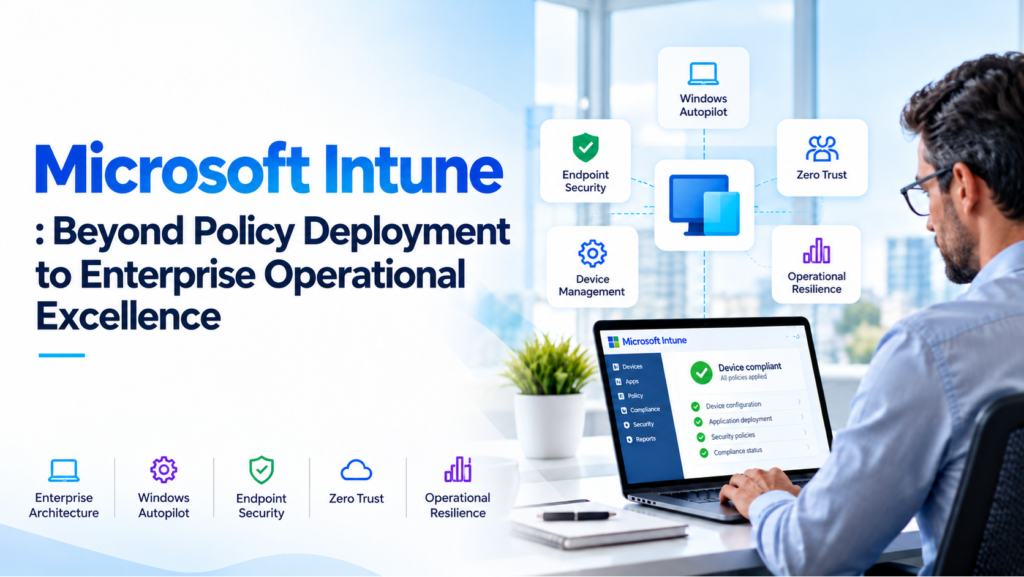
Microsoft Intune : Beyond Policy Deployment to Enterprise Operational Excellence
Why successful policy deployment is no longer enough—and how enterprises can build secure, resilient, and measurable endpoint operations.
- Executive Summary
A device can show as successfully enrolled in Microsoft Intune and still be unprepared for production.
Its antivirus engine may not be fully initialized. Its compliance status may prevent access to corporate applications. An App Control for Business policy may be installed without activating the supplemental rules the security team expects. A driver may report successful installation while repeatedly triggering restarts.
These situations expose a challenge in modern endpoint management: configuration success does not always equal operational readiness.
As organizations expand their reliance on Microsoft Intune, Windows Autopilot, Microsoft Defender for Endpoint, Microsoft Entra ID, and Conditional Access, the consequences of endpoint management failures extend beyond IT administration.
A compliance issue can interrupt business access. A faulty driver can affect thousands of employees. An application-control misconfiguration can disrupt critical applications. An incomplete device offboarding process can leave behind organizational associations.
The challenge for enterprise architects is therefore no longer simply deploying security and configuration policies. It is establishing an operating model where endpoint health, security, compliance, and business productivity remain continuously aligned.
This article examines recent real-world Intune administration scenarios and explores the architectural practices organizations should adopt to prevent isolated technical problems from becoming enterprise-wide disruptions.
The central principle is simple: an enterprise endpoint should not be considered healthy merely because Intune reports successful policy delivery.
It should be considered healthy when its intended state is implemented, verified, secured, monitored, and recoverable.
- Enterprise Challenge: The Growing Complexity of Endpoint Operations
A typical enterprise Windows 11 endpoint may depend on more than a dozen management and security components.
Microsoft Intune provides configuration and application management. Windows Autopilot provisions devices. Microsoft Entra ID manages identity. Microsoft Defender evaluates security health. Conditional Access determines resource access. Windows Update manages operating system and driver servicing.
Each component introduces its own processing sequence, dependencies, diagnostic information, and operational behavior.
The result is a distributed endpoint-management architecture where administrators can see a successful status in one control plane while another is still processing the resulting state.
The Hidden Cost of Operational Inconsistency
Consider a multinational organization with thousands of endpoints across several countries.
A newly deployed compliance policy incorrectly evaluates a subset of devices. Employees begin reporting that access to Microsoft Teams, SharePoint, or other corporate services is blocked.
The endpoint engineering team checks Intune and finds the policies successfully assigned. The identity team identifies Conditional Access denials. The security team confirms that the compliance policy is working according to its configuration.
Every team sees a technically valid result, yet employees cannot work.
This is where fragmented ownership becomes a business risk.
The organization needs a unified process for determining whether a problem comes from configuration, endpoint state, reporting, policy interaction, or a genuine security failure.
The Three Dimensions of Endpoint Reliability
Enterprise endpoint operations should be evaluated across three dimensions:
| Dimension | Architectural question |
| Security assurance | Is the endpoint enforcing the intended protection? |
| Operational assurance | Are applications, drivers, and device services functioning reliably? |
| Lifecycle assurance | Can the endpoint be provisioned, recovered, reassigned, and decommissioned safely? |
A mature Intune operating model addresses all three simultaneously.
- Technical Analysis: What Current Intune Incidents Reveal
3.1 Windows Autopilot: The Same Device, Different Enrollment Failures
One reported scenario involved a test device failing Microsoft Entra hybrid join with error 0x80004005 and cloud enrollment with 0x80180014.
It is tempting to categorize both errors as generic Autopilot failures. However, they can originate from different conditions.
Microsoft documented a Hybrid Join Autopilot timeout scenario involving 0x80004005, with fixes available through specific Windows cumulative updates for Windows 11 versions 23H2, 24H2, and 25H2.
Meanwhile, 0x80180014 can occur in device-reuse scenarios involving previous Intune device records or when enrollment restrictions prevent the attempted enrollment.
Architectural lesson: Autopilot troubleshooting must account for the deployment mode, Windows build, device registration history, Microsoft Entra state, and Intune enrollment restrictions.
Deleting device records without identifying the cause can create additional work and disrupt an otherwise recoverable deployment.
For organizations still operating Hybrid Join, this also reinforces the importance of evaluating whether cloud-native Microsoft Entra Join could simplify future provisioning.
Reference: Microsoft — Windows Autopilot troubleshooting
3.2 Compliance Policies: When Remediation Does Not Change the Result
Another reported problem involved a Windows password-complexity compliance setting remaining in a failed remediation state after the user changed the password.
Changing a password does not necessarily resolve every underlying policy-evaluation condition.
Administrators should distinguish between local Windows password requirements, Windows Hello for Business PIN requirements, DeviceLock CSP settings, and the compliance state reported to Intune.
Microsoft documents precedence and conflict considerations when DeviceLock and Windows Hello for Business policies coexist.
A practical investigation should establish:
- Which specific compliance setting reports failure?
- Which CSP or configuration controls the requirement?
- Is the device using a password, Windows Hello for Business, or another supported sign-in method?
- Are conflicting policies or legacy Group Policy settings present?
- Has Windows reevaluated the setting and reported the new state?
This matters because compliance information often participates in Conditional Access decisions.
A false noncompliance result can become a productivity incident, while a broadly relaxed compliance policy can become a security weakness.
The correct objective is to improve evaluation accuracy and remediation—not to bypass compliance.
Reference: Microsoft — Windows compliance settings
3.3 App Control for Business: Policy Deployment Is Not Enforcement Verification
A particularly valuable case concerns supplemental policies in App Control for Business.
An administrator observed that a built-in base policy had an unexpected policy identifier and that its supplemental policy was present but not enforced. A custom XML base policy enabling supplemental rules allowed the supplemental policy to activate.
This observation requires careful investigation before concluding that all built-in App Control policies have a product defect.
Microsoft’s App Control architecture requires a supplemental policy to reference an appropriate base policy. The base policy must allow supplemental policies, using rule option 17.
Organizations must validate the relationship between the deployed base-policy ID and supplemental-policy ID.
A successful Intune policy deployment report alone does not demonstrate that every application-control rule is effective.
For enterprise environments, verification should include:
- Checking active policies using CiTool.exe.
- Confirming base-policy and supplemental-policy relationships.
- Reviewing App Control event logs.
- Testing approved and prohibited applications.
- Evaluating managed installer and reputation-based trust behavior.
Microsoft recommends planning App Control carefully and using audit mode before broad enforcement.
Security implication: An incorrectly activated supplemental policy can prevent legitimate enterprise software from running. Conversely, assumptions about policy enforcement can create an undocumented security gap.
Reference: Microsoft — Multiple App Control policies
3.4 Defender Readiness: The Gap Between Provisioning and Security Convergence
A reported Windows Autopilot Device Preparation scenario showed a newly provisioned device arriving at the desktop while Windows Security displayed an unavailable antivirus engine.
The device initially failed antivirus-related compliance checks. After updates were loaded or sufficient time passed, Microsoft Defender became healthy.
This illustrates a provisioning-sequencing problem that enterprise architects should anticipate.
Device provisioning, Defender initialization, security intelligence updates, compliance evaluation, and Conditional Access do not necessarily reach their final states simultaneously.
Microsoft exposes the Defender CSP setting OobeEnableRtpAndSigUpdate to control real-time protection and security intelligence updates during OOBE.
However, configuring that setting alone should not be assumed to resolve every temporary Defender-health issue.
Administrators must also investigate Microsoft Defender Antivirus operating mode, service health, update connectivity, policy conflicts, and the timing of health reporting.
Organizations should define security-readiness criteria for newly provisioned devices, rather than assuming that successful OOBE completion guarantees full endpoint readiness.
3.5 Driver Updates: A Successful Installation Can Still Create an Incident
Recent administrator discussions describe Intel Extension and HP-related drivers repeatedly appearing after successful installation.
Some cases involve 0x80070103, often associated with an attempted driver installation where a matching or preferable driver is already present.
These reports do not establish one universal root cause. Multiple hardware components, extension-driver relationships, driver applicability, and Windows Update metadata can affect the behavior.
Microsoft’s Windows driver update documentation adds another important detail: extension drivers associated with a base driver may appear in Windows installation history without being independently manageable in the expected driver policy view.
Furthermore, pausing an update is a best-effort operation. A device that has already downloaded or begun installing a driver may still complete that installation.
The enterprise response should focus on controlled approvals, hardware-specific validation, and understanding which update-management component owns the driver.
For organizations with several OEMs, driver management should never be treated as an unrestricted extension of operating-system patching.
Reference: Microsoft — Windows driver update policies FAQ
3.6 ARM64 Devices: Application Compatibility Is Not Application Lifecycle Support
Windows on Arm introduces an additional architecture consideration.
The source material describes an administrator successfully targeting certain Enterprise App Catalog applications to x64 devices through automatic updates while ARM64 devices did not receive the expected installation or update behavior.
The administrator reported needing separate application packages to support ARM64.
This is an operational observation, not sufficient evidence of a universal Intune ARM64 limitation.
Microsoft supports ARM64 in Windows application management, but individual catalog applications, their requirements, detection rules, available installers, and automatic-update behavior still require validation.
For enterprises introducing ARM-based Windows laptops, application readiness must cover more than whether software launches successfully.
It must address installation, detection, patching, upgrading, rollback, and supportability across processor architectures.
3.7 Device Association: Secure Enrollment Creates New Offboarding Responsibilities
Windows Autopilot Device Preparation introduced device association capabilities in August 2026.
Device association strengthens organizational affinity and enables additional corporate-owned deployment scenarios.
However, it also changes the lifecycle model.
Microsoft documents that an associated device’s tenant affinity is stored in UEFI. A Windows reset or removal of its Intune record alone does not necessarily clear that association.
For devices permanently leaving an organization, Microsoft documents device-side association removal and emphasizes physical access requirements.
This introduces a major governance consideration for organizations supporting geographically distributed endpoints.
Equipment return, remote workforce logistics, asset disposal, device reassignment, and MDM unenrollment must be coordinated before decommissioning.
The architectural lesson is clear: onboarding design is incomplete unless offboarding has also been designed.
Reference: Microsoft — Device association lifecycle management
- Enterprise Best Practices: Move from Policy Deployment to Desired-State Assurance
The most effective Intune operating model is built around desired-state assurance.
The distinction is important.
Intune assigning a policy is evidence of configuration delivery. It is not conclusive proof that the device is healthy, secure, or ready for business.
DeepCoder recommends organizing endpoint assurance into five verification stages:
- Stage 1 — Intended: The required configuration and security outcome are documented and approved.
- Stage 2 — Delivered: Intune successfully delivers the relevant configuration, application, or update assignment.
- Stage 3 — Active: The endpoint applies the intended setting or security control.
- Stage 4 — Stable: The resulting state remains functional across restarts, policy refresh, updates, and normal user activity.
- Stage 5 — Auditable: The organization can demonstrate the endpoint’s state using logs, monitoring, and evidence suitable for operational and compliance review.
This model should be supported by deployment rings, standard change records, clear technical ownership, and documented rollback procedures.
Security governance must also define who can approve exceptions and under what conditions. Emergency exclusions should have named owners, expiration dates, and evidence of the risk being accepted.
No endpoint-management platform can compensate for weak operational accountability.
- Real-World Enterprise Use Case: Improving Endpoint Reliability Across a Global Workforce
Consider an illustrative multinational enterprise managing 7,500 Windows endpoints across headquarters, operational sites, and remote locations.
The device estate includes several OEMs, Microsoft Entra joined laptops, legacy Hybrid Join devices, Windows on Arm pilot systems, and business-critical applications.
The organization is migrating toward Microsoft Intune while tightening Conditional Access, Defender, and application-control requirements.
During its initial modernization pilot, three categories of incidents emerge.
- Provisioning readiness: Newly enrolled devices occasionally fail Defender compliance during initial initialization.
- Application-control validation: A business application fails to execute because a required supplemental App Control policy is not active.
- Driver servicing: A subset of devices experiences repeated restart prompts after driver installation.
Instead of weakening security baselines or repeatedly rebuilding affected devices, the architecture team redesigns the operational workflow.
Provisioning readiness is evaluated separately from long-term compliance. App Control policies are validated locally before enforcement. Driver approvals are segmented by OEM and hardware family.
The organization also introduces a cross-functional incident review involving endpoint engineering, identity, cybersecurity, and service management.
Measuring the Business Outcome
The organization can establish the following improvement targets:
| Measure | Suggested KPI |
| Provisioning reliability | Percentage of devices reaching verified readiness |
| Endpoint compliance | Persistent noncompliance after remediation windows |
| User disruption | Driver-related restart and application incidents per 1,000 devices |
| Operational efficiency | Mean time to detect and resolve endpoint incidents |
| Security assurance | Percentage of critical controls verified locally |
| Lifecycle governance | Percentage of retired devices with complete offboarding evidence |
These are proposed performance indicators for the illustrative scenario, not claimed historical results.
The lesson is that successful modernization depends on measurable end-to-end outcomes rather than the number of policies deployed.
- Step-by-Step Enterprise Troubleshooting and Resolution Framework
A repeatable troubleshooting framework reduces the risk of unnecessary rebuilds, destructive device-record changes, and broad security exceptions.
Step 1 — Identify the Failing Control Plane
Determine whether the issue belongs to enrollment, Windows configuration, the Intune Management Extension, application delivery, Microsoft Defender, compliance, App Control, Windows Update, or identity access.
Do not assume the product displaying the error is necessarily the product causing it.
Step 2 — Validate the Device’s Local State
Collect the evidence appropriate to the symptom.
For Autopilot and MDM, Microsoft documents:
mdmdiagnosticstool.exe -area “DeviceEnrollment;DeviceProvisioning;Autopilot” -zip “C:\Users\Public\Documents\MDMDiagReport.zip”
For Defender health, use:
Get-MpComputerStatus
For App Control policy state, use:
CiTool.exe –list-policies
For driver investigations, review Windows Update events, Device Manager, pnputil /enum-drivers, and the Windows SetupAPI device installation log.
Perform these checks with appropriate administrative authorization and protect collected diagnostic data.
Step 3 — Verify Enrollment and Policy History
Determine the device’s enrollment method, join type, previous registration state, assigned policies, relevant operating-system build, and recent changes.
For hybrid-managed devices, include Group Policy and Configuration Manager workloads in the investigation.
Step 4 — Establish Whether the Issue Is Widespread
Compare affected and unaffected devices by hardware model, Windows version, policy assignment, location, and deployment date.
A problem affecting one OEM model should not immediately trigger a tenant-wide policy rollback.
Step 5 — Check Known Issues and Service Health
Review Microsoft Learn, Windows release health information, Intune service health, and OEM technical advisories.
The supported Windows build may be a key factor, especially for provisioning and driver-related issues.
Step 6 — Implement a Controlled Remediation
Use the least disruptive supported remediation.
Examples include correcting an enrollment restriction, updating Windows to a fixed build, correcting an App Control base-policy relationship, adjusting application detection, or pausing an affected driver deployment.
Avoid indiscriminately deleting Microsoft Entra, Intune, or Autopilot objects.
Step 7 — Validate Security and Business Functionality
After remediation, confirm the endpoint’s local configuration and the corresponding Intune state.
Verify application access, compliance, Defender health, and Conditional Access behavior where applicable.
A resolved portal error is not sufficient if the employee remains unable to perform the required business task.
Step 8 — Document the Incident and Prevent Recurrence
Capture the root cause or, if unresolved, the evidence-backed working hypothesis.
Record the affected devices, logs, corrective action, validation evidence, support references, and recommended preventive controls.
This information should become reusable L2/L3 knowledge rather than remaining in an individual engineer’s notes.
- Architecture Recommendations for Enterprise-Scale Intune
Standardize the Provisioning Architecture
Evaluate traditional Windows Autopilot and Windows Autopilot Device Preparation according to documented feature differences.
Traditional Autopilot supports scenarios including Hybrid Join and uses the Enrollment Status Page. Device Preparation follows a different approach and supports Microsoft Entra Join.
Enterprises should avoid treating the two solutions as interchangeable.
For new cloud-native deployments, prioritize Microsoft Entra Join where application and infrastructure dependencies permit. Retain Hybrid Join only where there is a documented technical justification and modernization path.
Strengthen Zero Trust Integration
Use Microsoft Entra Conditional Access, Intune compliance, Microsoft Defender, and application-control capabilities as complementary controls.
Conditional Access decisions should rely on meaningful signals, while privileged or high-risk access must remain appropriately restricted.
Compliance grace periods can help with legitimate remediation, but they should be risk-based and must not become permanent exceptions.
Introduce Dedicated Hardware Validation Rings
Use separate deployment rings for Windows feature updates, quality updates, and driver servicing.
Where appropriate, align manual driver approvals with planned security maintenance windows.
Validate critical OEM models, docking stations, firmware, peripheral devices, and line-of-business hardware before expanding deployment.
Establish Lifecycle and Ownership Governance
Define authoritative processes for asset registration, enrollment, reassignment, recovery, retirement, and disposal.
Review how device association, BitLocker recovery-key handling, Microsoft Entra records, and Intune objects interact with asset-management workflows.
The organization should always be able to answer who owns a device, which tenant it belongs to, which controls are active, and whether it can safely leave the enterprise.
- Automation Opportunities: From Reactive Support to Predictive Operations
Modern Intune operations present substantial opportunities for PowerShell, Microsoft Graph, and proactive remediation workflows.
Automated Compliance Monitoring
Microsoft Graph exposes managed-device information, including compliance state and operating-system details.
An enterprise monitoring process can identify persistent noncompliance, distinguish new provisioning devices from established endpoints, and correlate repeated failures across device groups.
Automated Evidence Collection
Endpoint-side PowerShell scripts can collect Defender health, App Control policy state, update history, and diagnostic information when specific conditions are detected.
For example, a device reporting repeated antivirus-health problems could be flagged for evidence collection rather than immediately being rebuilt.
Application Lifecycle Validation
Automated deployment checks can compare expected applications with actual installation and detection results.
This is particularly valuable for ARM64 adoption, application upgrades, and software delivered through the Enterprise App Catalog.
Driver Incident Analytics
Combine Intune driver reporting with OEM and device inventory.
Look for repeated restart requests, matching driver failures across a hardware family, and patterns associated with a recently approved update.
Guardrails for Automation
Automation that reads telemetry is fundamentally different from automation that changes security or enrollment state.
Read-only collection should use least-privilege permissions. Changes involving application enforcement, device deletion, security exclusions, or retirement should require explicit approval and a documented recovery path.
Microsoft Graph automation should prefer supported v1.0 endpoints when available, use appropriate permissions, and protect application credentials.
Operational automation should reduce investigation time without introducing uncontrolled production changes.
- Key Takeaways for Enterprise Leaders
Executive Takeaways
- Intune reliability must be assessed through business availability, security assurance, and lifecycle readiness—not configuration success alone.
- Endpoint incidents increasingly affect identity, application access, employee productivity, and compliance.
- Cross-functional accountability between workplace engineering, security, identity, and service management is essential.
- Hardware validation and controlled release management reduce the impact of widespread update incidents.
- Automated observability provides a stronger foundation for service quality and operational efficiency.
Technical Takeaways
- Investigate Autopilot errors using the actual deployment mode, Windows build, enrollment restrictions, and device history.
- Validate compliance at the local device and policy-evaluation layers.
- Verify App Control base and supplemental policies using device-side evidence.
- Treat post-OOBE security readiness as a measurable operational requirement.
- Understand the limitations of driver approval, pause, and rollback mechanisms.
- Validate ARM64 application servicing independently from basic application compatibility.
- Incorporate device association cleanup into formal decommissioning procedures.
- Conclusion: The Next Stage of Microsoft Intune Maturity
Microsoft Intune has become a central component of the enterprise digital workplace.
Its strategic value is no longer limited to replacing traditional endpoint-management infrastructure. It now helps enforce organizational security, deliver applications, automate provisioning, support hybrid work, and provide a consistent device-management model.
But the greater an organization’s dependence on Intune, the more important its operational resilience becomes.
The next stage of maturity is not adding more policies.
It is creating an environment where endpoint configuration can be verified, security controls can be trusted, issues can be isolated quickly, and device lifecycle processes remain predictable.
For enterprise architects, this requires integrating endpoint management with identity architecture, cybersecurity operations, Windows servicing, application engineering, service management, and business continuity.
For CIOs and CISOs, it means measuring success through secure productivity and operational outcomes.
The objective is not simply to manage every endpoint. It is to ensure every managed endpoint can be trusted, supported, and recovered throughout its lifecycle.
How DeepCoder Helps Enterprises Build Resilient Endpoint Management
DeepCoder helps organizations design and modernize Microsoft Intune, Windows Autopilot, Microsoft Entra ID, endpoint security, application delivery, and enterprise device-management operations.
Our approach connects architecture, implementation, governance, and operational readiness—helping organizations build a secure Modern Workplace without overlooking the complexity of day-to-day endpoint operations.
Explore DeepCoder’s Microsoft Intune Consulting Services and Modern Workplace Consulting to plan your next stage of endpoint transformation.
Frequently Asked Questions
- Why does an Intune device remain noncompliant after a user corrects the reported issue?
A user action does not guarantee immediate compliance reevaluation. Administrators should inspect the failed setting, the underlying Windows configuration, policy conflicts, device check-in, and resulting Intune compliance state.
- What is the difference between Windows Autopilot and Windows Autopilot Device Preparation?
Traditional Windows Autopilot supports registered-device provisioning scenarios and uses the Enrollment Status Page. Device Preparation uses a different provisioning workflow, supports Microsoft Entra Join, and can use device association where requirements are met. The appropriate option depends on the enterprise’s deployment and lifecycle requirements.
- Why can an App Control supplemental policy fail even when it appears installed?
A supplemental policy must reference a compatible base policy that permits supplemental policies. Administrators should inspect the policy identifiers, rule options, and actual enforcement state using tools such as CiTool and Windows event logs.
- Why do Windows driver updates sometimes appear repeatedly after successful installation?
Possible causes include driver applicability, extension-driver relationships, duplicate or equivalent packages, detection behavior, and OEM driver metadata. The installation history alone does not prove a driver is defective. Examine Windows Update diagnostics and driver-store information before drawing conclusions.
- How can Microsoft Graph and PowerShell improve Intune operations?
Organizations can use Microsoft Graph and PowerShell to collect endpoint inventory, review compliance status, identify recurring failures, validate configuration, and generate operational reports. High-impact remediation actions should remain governed by least-privilege access and change approval.